The web is entering a new phase where user privacy and fast performance matter more than any old tracking method. Third-party cookies, once the backbone of digital analytics, are now being blocked by browsers, restricted by laws, and rejected by users.
By 2025, going cookie-less isn’t just a technical upgrade. It’s a smart, future-proof choice that protects your business, respects your visitors, and keeps your data accurate.
Below are three strong reasons website owners are switching to cookie-less tracking — and why privacy-focused tools like YooAnalytics make this shift effortless.
1. Privacy Rules Are Getting Stricter
Privacy isn’t a trend. It’s becoming the new standard for how websites operate.
Regulations like GDPR in Europe and CCPA in California have forced businesses to rethink how they collect, store, and use personal data. Each year, the rules tighten. Consent pop-ups get more complex. Fines get larger. And the pressure on site owners keeps increasing.
Third-party cookies collect personal behaviour data across websites . which is exactly what these laws target. That’s why Chrome, Firefox, and Safari are all blocking them by default.
Going cookie-less removes almost all of that legal friction. You track what matters : page views, clicks, traffic sources, conversions — without invading anyone’s privacy.
Why it matters:
Fewer consent banners
Less legal risk
A more transparent visitor experience
Cookie-less tracking gives you clean, compliant data without the stress.
2. More Trust and Better User Experience
People are becoming more privacy-aware. They reject pop-ups. They install ad blockers. They avoid sites that feel “too tracking-heavy.”
When users know a website respects their privacy, they stay longer, explore more, and convert more often. A cookie-less approach helps you build that trust naturally.
Visitors don’t feel watched or followed. They simply browse comfortably.
This is where privacy-friendly analytics tools make a difference. Instead of relying on third-party scripts, YooAnalytics tracks essential behaviour directly on your website, with no personal data collection. That’s why it’s a strong option for WordPress users who want analytics that actually build trust, not break it.
Cookies aren’t just a privacy problem. They’re a performance problem.
Most third-party analytics tools load large JavaScript files from external servers. These scripts slow down your site, especially on mobile devices. Search engines now treat site speed as a major ranking factor, so even small delays can hurt your SEO.
Cookie-less analytics tools, especially local analytics, load directly from your server. That means:
No external script calls.
Fewer performance bottlenecks
Faster page load times
Better Core Web Vitals scores
A faster site doesn’t just rank higher, it makes visitors happier. And happier visitors take more actions.
Tools like YooAnalytics are built for this new performance-first world. They offer lightweight tracking that doesn’t bloat your pages or interrupt the browsing experience.
Final Thoughts
2025 is the year website owners finally shift away from outdated tracking methods. Cookie-less analytics offer privacy, speed, accuracy, and long-term compliance — all without sacrificing insight.
If you want to future-proof your WordPress site, switching to a privacy-friendly, self-hosted tool like YooAnalytics is one of the smartest moves you can make.
If you manage a WordPress site today, you’ve probably noticed a growing tension: You need analytics to understand your audience — but every script you add slows down your site and introduces additional privacy concerns.
For years, Google Analytics dominated the market. But the web is shifting. Browsers are blocking cookies, privacy laws are tightening, and website owners are looking for faster, cleaner, and more transparent ways to measure performance.
This is exactly why local analytics — sometimes referred to as self-hosted analytics — are becoming the new standard. Tools like YooAnalytics give you the insights you need without overloading your site or sharing data with third-party platforms.
Let’s explore the shift and why local analytics are becoming essential for WordPress users in 2025 and beyond.
Privacy Is Now a Ranking Factor — Literally
Search engines aren’t just checking keywords and backlinks anymore. They’re evaluating how trustworthy and user-friendly your site is.
Here’s what changed:
Modern browsers block third-party cookies.
Governments enforce strict privacy laws, such as GDPR and CCPA.
Users actively avoid sites that feel “track-heavy” or intrusive.
A 2024 survey found that 68% of users bounce from sites with aggressive tracking or slow load times. Google pays attention to that behavior — and it affects your rankings.
Privacy-friendly analytics help you stay compliant and build trust without sacrificing insights.
The Hidden Drawbacks of Cloud-Based Tracking
Tools like Google Analytics are powerful, but they come with issues that most people don’t talk about.
1. They Slow Your Site Down
External scripts load from remote servers. Each one adds milliseconds — and those milliseconds matter.
Google’s own study shows: A 1-second delay can reduce conversions by up to 20%.
2. You Lose Control of Your Own Data
With cloud tools:
Data is sent off your server.
You depend on third-party compliance.
You can’t fully control retention, security, or storage rules.
In a privacy-first world, that’s a real risk.
3. They Struggle in a Cookie-Less Web
By 2025, nearly all major browsers will block tracking cookies by default. Traditional analytics rely heavily on cookies, which means their accuracy is already dropping.
Why Local Analytics Are the Future
Local analytics solve all of these issues by processing data inside your own WordPress site, not on remote servers.
Here’s why more site owners are making the switch:
1. Faster Load Times
Because everything runs locally, there’s no:
Extra external scripts
Cross-server requests
Round-trip delays
Your pages load faster, and your SEO benefits instantly.
Many site owners report speed improvements of 20–40% after removing heavy analytics scripts.
2. True Privacy and Full Control
Your tracking data stays:
On your own hosting
Inside your own database
Fully under your rules
No third-party access. No external data transfer. No grey areas in compliance.
This makes local analytics naturally GDPR-friendly without cookie banners.
3. Accurate Tracking Without Cookies
Local analytics tools like YooAnalytics use modern methods such as:
Server-side logging
Anonymous fingerprinting
Session tracking without personal data
So even when cookies die, your insights stay sharp.
4. Made for WordPress Performance
Traditional analytics tools aren’t built specifically for WordPress. Local analytics plugins are.
YooAnalytics, for example:
Loads as a lightweight WP script
Doesn’t affect Core Web Vitals
Shows all reports inside your dashboard
Works with caching plugins and CDN setups
This performance-first approach makes a big difference for bloggers, businesses, and WooCommerce stores.
Real Example: How Local Analytics Improve SEO
Here’s what happens when a site switches from Google Analytics to local analytics:
Before
Loading GA adds ~150 KB of script.
PageSpeed score drops
Visitors bounce from slow pages.
Cookies trigger consent warnings.
After
No external requests
Faster page speed
Better user experience
Higher engagement and longer read time.
One WordPress store reported a 12% jump in organic traffic after removing heavy tracking scripts because Google rewarded the improved performance.
Why YooAnalytics Fits the Future of WordPress
YooAnalytics offers the benefits of local analytics without technical complexity.
You get:
Real-time traffic stats
Page-level insights
Referrer tracking
Device + location reports
Accurate visitor session data
Zero cookies
Zero external scripts
And everything runs inside your own website — no remote servers involved.
It’s the ideal solution if you want analytics without slowing down your site or compromising privacy.
Final Thoughts
The question is no longer “Should I use analytics?” The question is how you collect data without breaking privacy rules or harming your site’s performance.
Local analytics offer the best of both worlds:
Fast-loading pages
Clear, accurate insights
Full privacy control
Long-term compliance
Tools like YooAnalytics make this shift simple — and set you up for the privacy-first web that’s now becoming the norm.
Start tracking privately with YooAnalytics — your data, your rules.
FAQs: Local Analytics, Privacy, and WordPress
1. What are local analytics?
Local analytics are tracking tools that run directly on your own website instead of sending data to external servers. This means all visitor data stays inside your hosting environment, giving you faster performance and stronger privacy.
2. How are local analytics different from Google Analytics?
Google Analytics sends your visitor data to Google’s servers and relies on cookies. Local analytics tools process everything inside WordPress, load faster, and work without personal data. They’re more privacy-friendly and easier to comply with GDPR.
3. Why do local analytics improve website speed?
External analytics scripts take time to load and slow down your pages. Local analytics removes those scripts, which reduces external requests and helps improve Core Web Vitals — a key SEO ranking factor.
4. Are local analytics better for privacy?
Yes. Because no data leaves your website, you avoid third-party tracking concerns. You also reduce the need for cookie banners, consent pop-ups, and complex privacy policies.
5. Are local analytics accurate without cookies?
Modern local analytics use cookie-less tracking methods such as server logs and anonymous sessions. These methods work even when browsers block cookies, making them more reliable for 2025 and beyond.
6. Is a self-hosted analytics plugin safe for my site?
A well-built local analytics plugin is very safe. It stores data inside your WordPress database, giving you complete control over security, access, and retention.
7. Will a local analytics plugin work with caching or CDN?
Yes. Plugins like YooAnalytics are designed to work smoothly with caching, CDN services, and performance-focused setups commonly used on WordPress sites.
8. Does switching to local analytics help SEO?
Indirectly, yes. Faster site speed, better user experience, fewer pop-ups, and improved trust all contribute to better SEO. Many websites see higher engagement and reduced bounce rates after switching.
9. Do I still get useful reports without Google Analytics?
Absolutely. You can still track visitors, referrers, page views, device usage, time on page, and user journeys — all without relying on third-party servers.
10. Is YooAnalytics a good Google Analytics alternative for WordPress?
Yes. YooAnalytics is lightweight, privacy-friendly, and designed specifically for WordPress. It offers the essential stats you actually need without slowing down your website or sending data to external platforms.
If you’ve ever customized a WooCommerce store, you already know the checkout page can make or break conversions. It’s where customers decide whether to complete the purchase or abandon it. One of the smartest ways to improve checkout flow is by adding conditional checkout fields.
These fields appear only when they’re relevant for instance, showing a “Company VAT” field only when a customer selects “Business,” or asking for “Delivery Instructions” only if “Home Delivery” is chosen.
In this guide, you’ll learn exactly how to set up conditional checkout fields in WooCommerce both with a plugin and custom code so your store’s checkout feels smooth, personal, and efficient.
Why Conditional Checkout Fields Matter
Every extra field on your checkout page is friction. The more a customer has to fill out, the greater the chance they’ll drop off. But removing all extra fields isn’t the answer either. Sometimes you genuinely need more information, depending on the order type or shipping method
Conditional checkout fields strike the perfect balance. They show relevant options only when needed. For example:
Display “Company Name” and “Tax ID” only when the buyer chooses Business as the customer type.
Show “Delivery Date” and “Delivery Instructions” only when the customer selects Home Delivery.
Ask for “Gift Message” when the user checks Send as a Gift.
Hide all shipping-related fields when a digital product is in the cart.
This approach keeps your checkout clean, fast, and user-friendly without sacrificing important data collection.
Understanding WooCommerce Checkout Fields
WooCommerce organizes checkout fields into arrays such as billing, shipping, and order. Each field has its own properties like type, label, placeholder, required status, and priority.
Developers can modify these using filters like:
woocommerce_checkout_fields
This filter lets you add, remove, or change any field’s behavior. It’s the same system plugins use to offer more advanced customization.
Method 1: Using a Plugin (No Coding Required)
For most store owners, the easiest and safest way to create conditional checkout fields is by using a plugin. It requires no coding knowledge and can be managed directly from the WordPress dashboard.
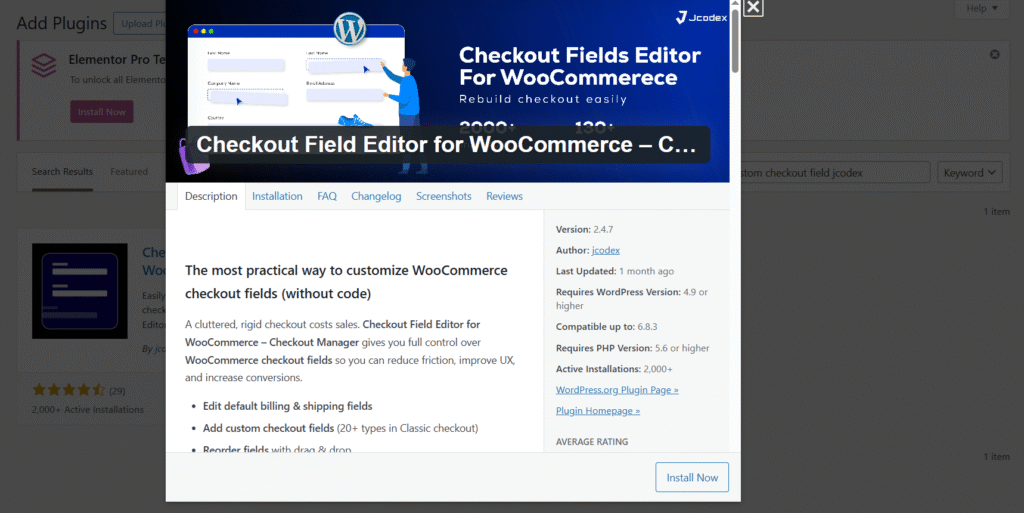
One reliable tool for this purpose is Checkout Field Editor for WooCommerce by Jcodex. It allows you to add, edit, and organize checkout fields visually and includes powerful conditional logic options.
Here’s how to set it up:
Step 1: Install and Activate the Plugin
Log in to your WordPress Dashboard.
Navigate to Plugins → Add New.
Search for “Checkout Field Editor for WooCommerce by Jcodex.”
Click Install Now, then Activate.
Once activated, you’ll find a new menu under WooCommerce → Checkout Fields.
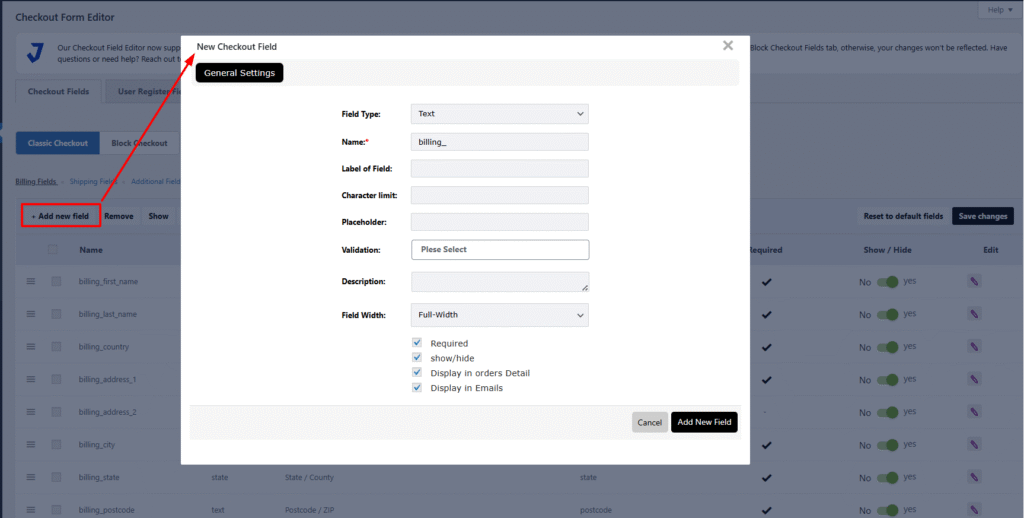
Step 2: Add a New Field
Go to WooCommerce → Checkout Fields.
Choose the section where you want the new field to appear Billing, Shipping, or Additional.
Click Add Field.
Enter the field label (for example, Delivery Date).
Select the field type text, date picker, checkbox, dropdown, etc.
Mark it as required or optional depending on your needs.
Click Save Changes to confirm.
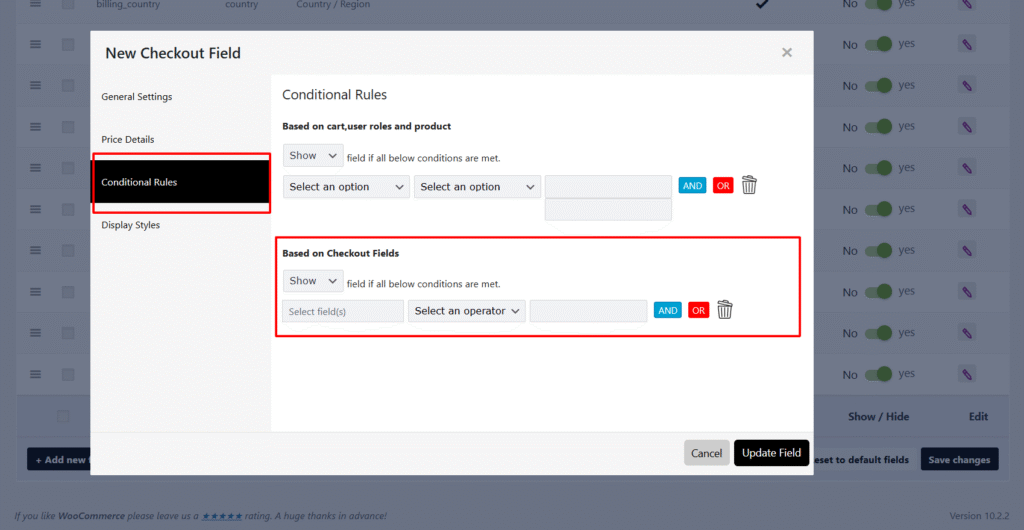
Step 3: Apply Conditional Logic
This is where the magic happens. You can control when a field appears based on what the customer selects.
For instance, if you want the Delivery Date field to appear only when a customer selects “Home Delivery”:
Edit the “Delivery Date” field you just created.
Scroll down to the Conditional Logic tab.
Enable “Display this field conditionally.”
Choose Condition Type → “Shipping Method.”
Set the rule: Show this field when Shipping Method = Home Delivery.
You can create similar conditions based on:
Selected Payment Method (e.g., show extra field only for “Cash on Delivery”).
User Role (e.g., wholesale vs. retail customers).
Cart Contents (specific products or categories).
Custom Checkboxes (like “Send as a Gift”).
Click Save Field, and the condition will automatically apply on the checkout page.
Step 4: Example Add a “Gift Message” Field
Let’s walk through one practical example. Suppose you want customers to write a message when sending a product as a gift.
Create a checkbox field called Send as a Gift.
Create a text area field called Gift Message.
In the Gift Message settings, enable Conditional Logic.
Add the rule: Show this field when “Send as a Gift” is checked.
Click Save Field, and the condition will automatically apply on the checkout page.
Step 4: Example Add a “Gift Message” Field
Let’s walk through one practical example. Suppose you want customers to write a message when sending a product as a gift.
Create a checkbox field called Send as a Gift.
Create a text area field called Gift Message.
In the Gift Message settings, enable Conditional Logic.
Add the rule: Show this field when “Send as a Gift” is checked.
Now when customers tick the “Send as a Gift” box, the Gift Message field instantly appears creating a clean, intuitive experience.
Step 5: Test and Preview
After setting everything up, visit your store’s checkout page and test the conditions. Try toggling the different shipping or payment options to confirm that fields show or hide correctly.
If something doesn’t work as expected, check for:
Theme conflicts
JavaScript caching
Missing field priorities or overlapping conditions
Once it works smoothly, you’ve got a professional, dynamic checkout system with no code required.
Method 2: Adding Conditional Fields with Code
For developers or technical store owners, adding conditional fields with PHP and JavaScript offers total flexibility.
Here’s a simple example. Let’s say you want an “Order Instructions” text area to appear only if the customer selects Local Pickup.
Add the following PHP code to your theme’s functions.php:
This script listens for changes in the selected shipping method and hides or shows the field accordingly.
You can expand this technique to other use cases such as specific products in the cart, logged-in user roles, or even custom payment gateways.
Saving Custom Field Data
If you’re adding fields manually, make sure the data is stored properly with each order. You can do this using the woocommerce_checkout_update_order_meta hook:
add_action('woocommerce_checkout_update_order_meta', 'save_custom_checkout_field');
function save_custom_checkout_field($order_id) {
    if (!empty($_POST['order_instructions'])) {
        update_post_meta($order_id, '_order_instructions', sanitize_textarea_field($_POST['order_instructions']));
    }
}
This ensures your custom data appears in the order details inside your WordPress dashboard.
When to Use Each Method
Both methods have their place:
Use the Plugin Method when:
You want a quick setup without coding.
Multiple team members manage your store.
You prefer a visual interface.
Use the Plugin Method when:
You’re comfortable with PHP or JavaScript.
You need advanced logic not supported by plugins.
You want to minimize plugin dependencies for performance.
If you’re running a complex store with frequent checkout updates, the plugin method will save you hours. But if you’re building a custom checkout flow for a client or want precise control, coding it yourself gives maximum flexibility.
Best Practices for Conditional Fields
Keep checkout simple. Only add fields that serve a clear purpose.
Test across devices. Make sure fields display correctly on mobile, tablet, and desktop.
Use clear labels and instructions. Avoid confusing users with vague field names.
Backup before changes. Always back up your site before editing checkout fields or adding new code.
Monitor performance. Too many conditions can slow down checkout; keep it optimized.
Final Thoughts
Conditional checkout fields make WooCommerce more flexible and customer-focused. By showing only the information that matters to each shopper, you streamline the process and improve conversion rates.
Start small, add one or two smart fields, test them with real users, and build from there. The goal isn’t just a “fancier” checkout; it’s one that feels effortless and intuitive to your customers.
When checkout feels natural, sales happen faster and happier customers come back again.